

















Keen to see CodeSMART for VB6 in action? Well, you have reached the right place. We have prepared for you a few sections illustrating several CodeSMART for VB6 key features.
|

1. INTEGRATION WITH THE IDE
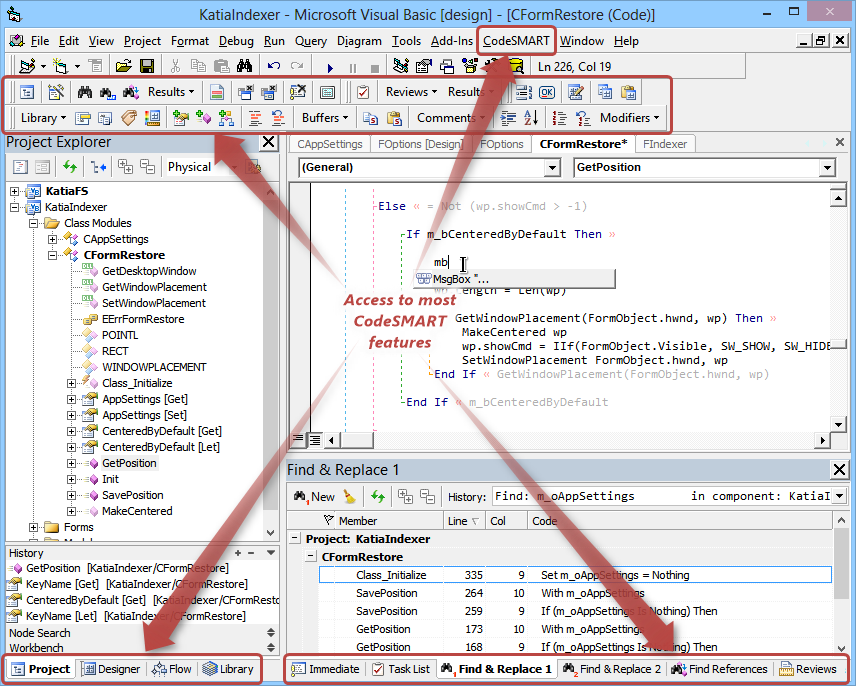
CodeSMART for VB6 is exceptionally well integrated within the Visual Basic 6.0 IDE (Visual Basic 5.0 is also supported). Brief highlights:
- All the features it adds to Visual Basic are accessible through the main menu and four toolbars it registers with the environment.
- CodeSMART tools are hosted or display their results within dedicated tool windows that can be moved or docked.
- Code view enhancements are displayed directly in the Visual Basic standard code editor window.
- Tabs are added to the Immediate window, which is thus converted into a central reporting place while it does not loose its initial functionality.
- Full screen support: yes, it's true, you can code in VB6 while completely maximizing the work area!
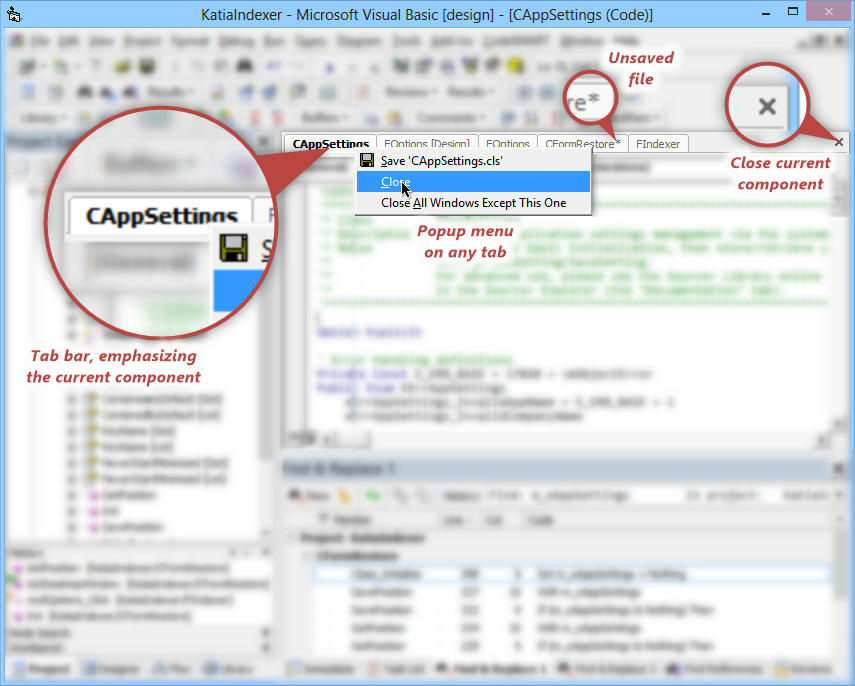
- Tabbed MDI IDE: CodeSMART can change the Visual Basic standard multiple document interface (MDI) into a modern Tabbed MDI one similar to VS.NET and other modern environments.
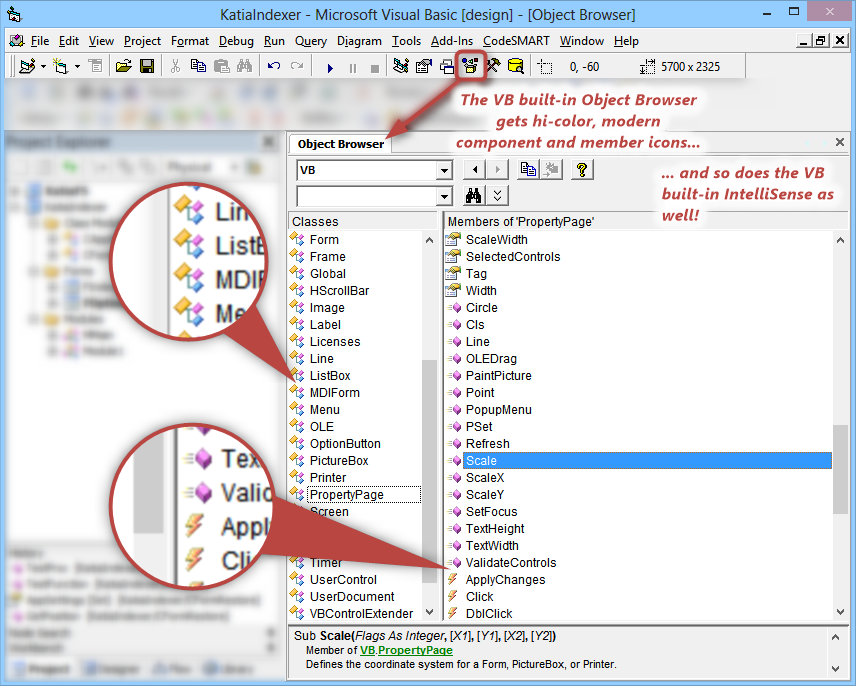
- Inject beauty into built-in VB6 core subsystems like the Object Browser and the Intellisense - the old, 16-color icons are gone and new, modern icons are now used, in line with CodeSMART's main subsystems.
2. CODE VIEW ENHANCEMENTS
The CodeSMART Code View Assistant brings a rich set of visual enhancements to the standard Visual Basic code editor window. With the CodeSMART Code View Assistant
enabled, the Visual Basic code window dramatically changes with critical information provided on many control statements, branch lines to visually identify code nesting and assisted
navigation between control statement opening and closing parts.
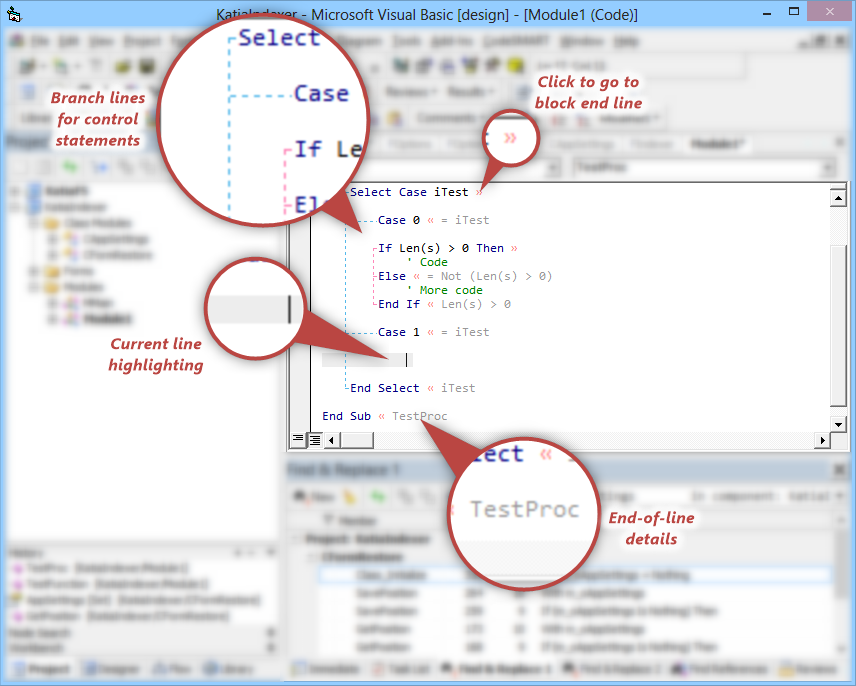
- Branch Lines are drawn to emphasize control statement branches, that is lines drawn between the opening and closing parts of each control statement; very useful in visualizing code nesting.
- End-of-Line Details represent descriptive comments at the end of certain control statement closing parts; can be used to identify a long branch.
- Hotspots are visual markers for control statement and procedure main parts; can be used to navigate (with mouse clicks) between the opening and closing parts of the control statement/procedure, and to emphasize a certain branch line.
- Current Line Highlighting, as the name implies, assists the developer by highlighting the active code line with a grayed background.
3. EXPLORER TOOLS
3.1. Project Explorer
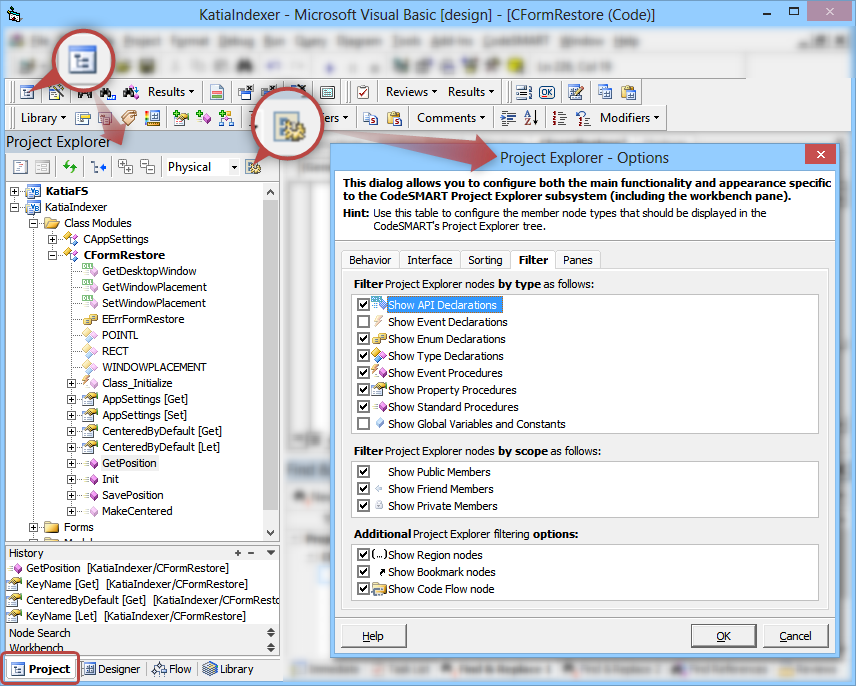
One of CodeSMART's central pieces is undoubtedly the enhanced Project Explorer, a fully integrated and functional replacement of the standard Visual Basic Project Explorer.
It can display every piece of information the standard Visual Basic one does, and expand component code in addition. Well,
not just that - it supports filtering, searching, navigation history, item highlighting, logical view etc.
The CodeSMART Project Explorer supports two different view styles:
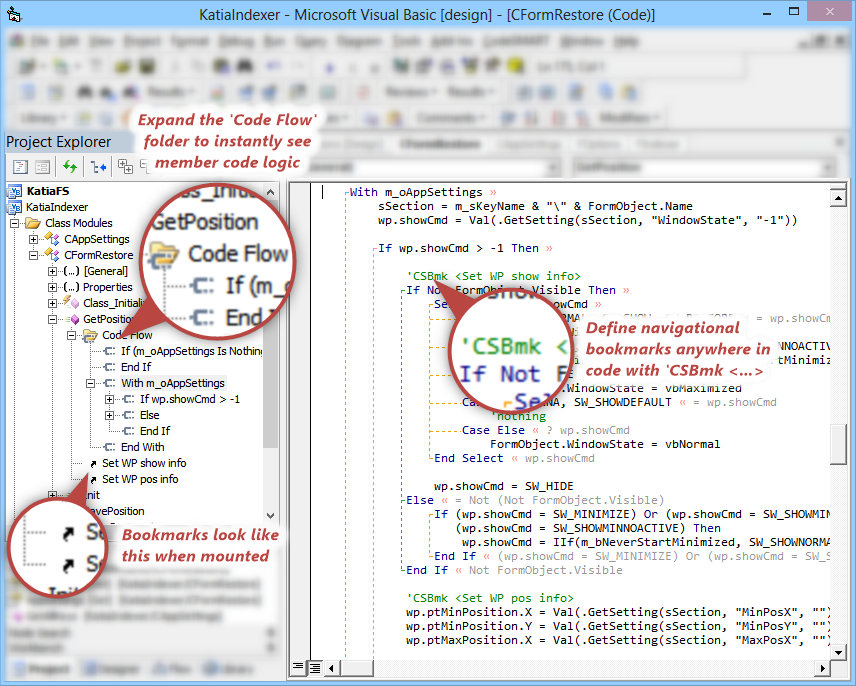
- Physical: where components are displayed grouped in standard folders like in the built-in Project Explorer. Components can be further expanded to show their procedures, variables, event down to code flow items (select-case structures etc).
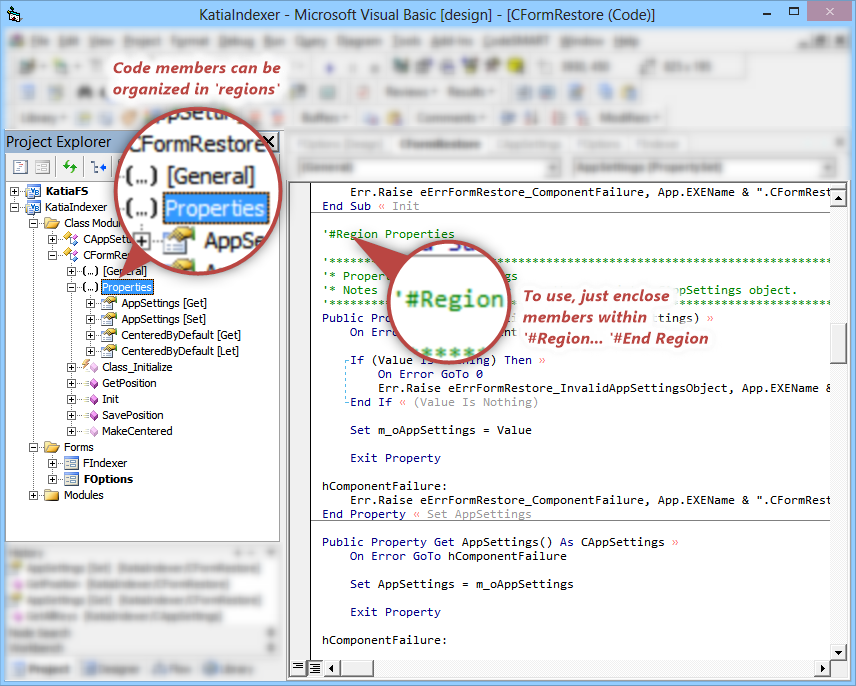
- Logical: where components can be logically grouped in user defined folders to ease the application's functional scheme comprehension. Code expansion is also available like in the above-described view.
In addition to these view styles, the CodeSMART Project Explorer can help you focus on a limited number of components and code elements which represent the current work context through three navigation helper panes:
- The history pane: tracks down the last visited items, that is: last opened Project Explorer items, double-clicked Immediate window pane results, edited code elements and viewed code items (if configured to do so). Persistent between sessions on a per-project basis.
- The node search pane: used to search for nodes in the CodeSMART Project Explorer.
- The workbench pane: this one can help you focus on certain elements by defining shortcuts to them. Persistent between sessions on a per-project basis.
3.2. Code Flow Explorer and Designer Explorer
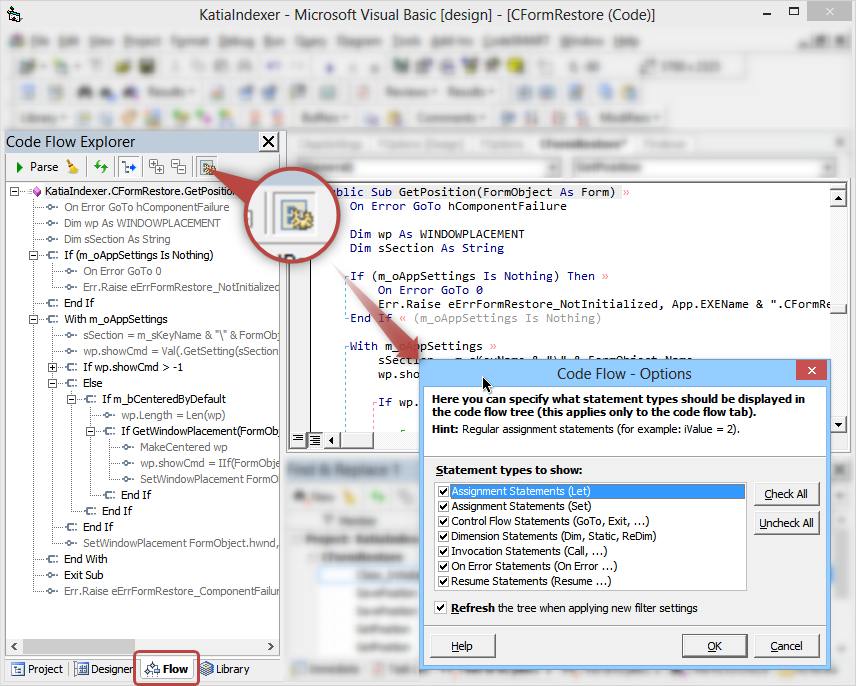
If the expanded Code Flow folder area inside the Project Explorer is not enough then you can always use the dedicated Code Flow Explorer, plus the information is much more complete here. By using the
'Code Flow - Options' dialog, you can configure which code constructs you are interested in seeing in the tree.
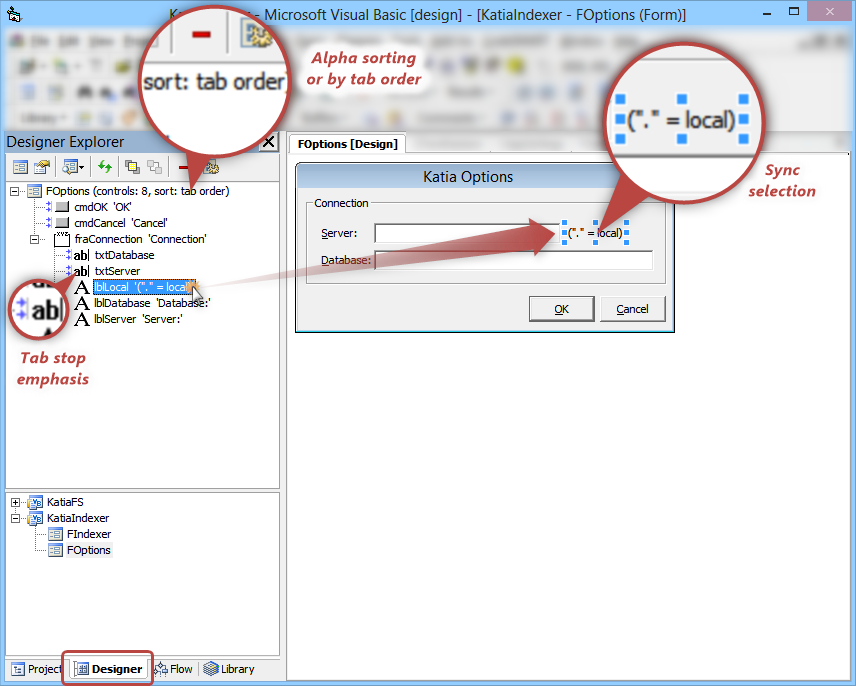
The Designer Explorer is a tool dedicated to ease user interfaces development inside the Visual Basic IDE. You will be able see all the controls hosted on the current designer, including containment
(parent) information. Controls can be sorted alphabetically or by following their tab order. Additionally, designer components are displayed in a Project Explorer-like
hierarchy in order to offer quick access to several basic operations (open, SCC etc).
3.4. Library Explorer
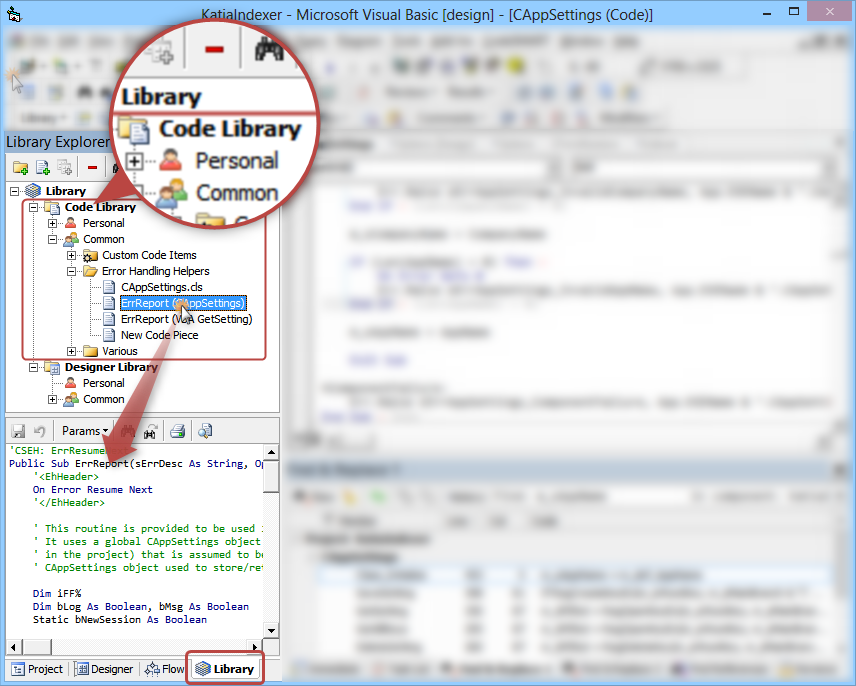
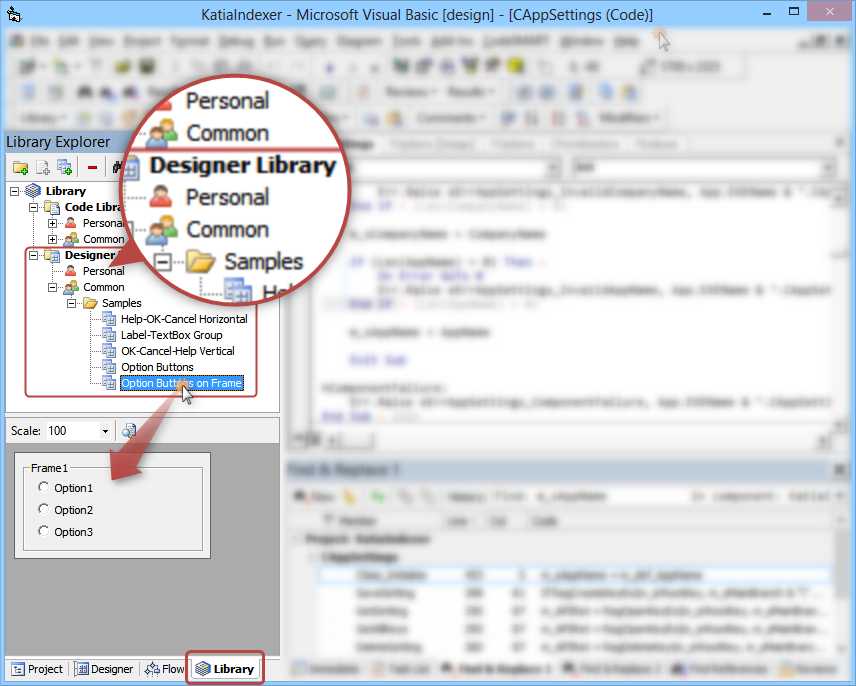
The CodeSMART Library Explorer represents a convenient way to quickly store and retrieve various code or designer templates. It can be seen as a Visual Basic repository in
which you can store and organize different code items and designer scraps, group them in logical folders and share them within a team.
- The Library Explorer can be used either as a dockable toolwindow, or docked with the CodeSMART Project Explorer.
- Both horizontal and vertical split view styles are available.
- Custom Code items (used by the Custom Code Inserter and Remover) and Multiple Copy and Paste Buffers are placed in special folders.
- Designer templates feature a real-life zoomable preview in a dedicated pane.
4. FIND TOOLS
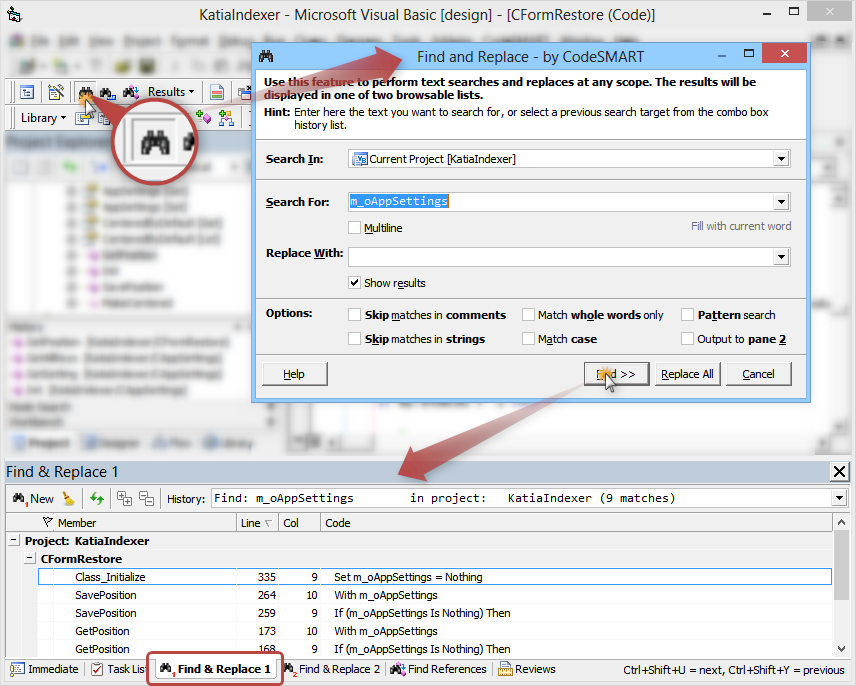
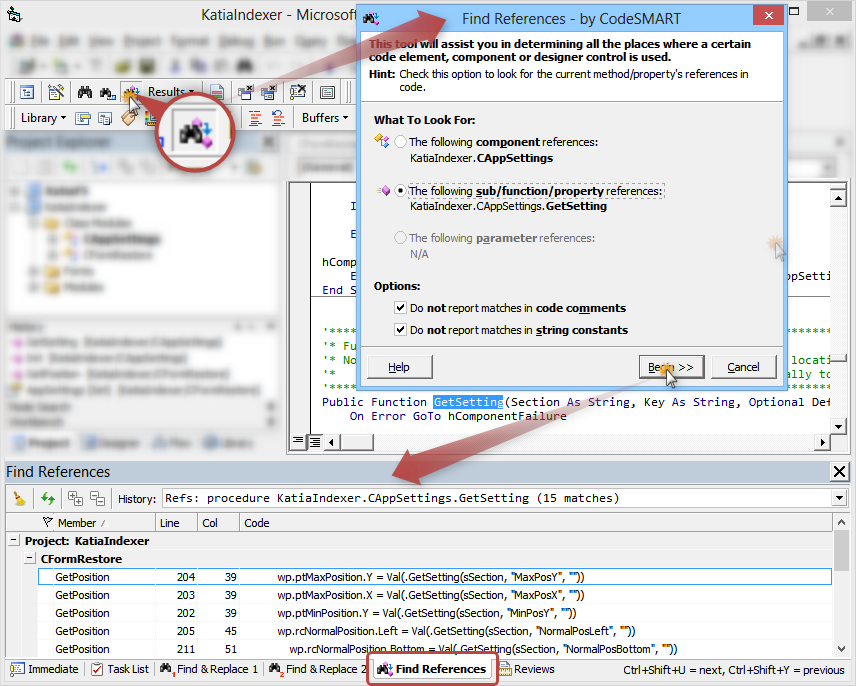
The CodeSMART Find and Replace adds powerful search and replace capabilities to the Visual Basic environment and can be used to perform operations at different scopes (even
on entire project groups) with various settings and obtain browsable result lists.
The results list can be refreshed, cleared, printed, exported and the pane view can be customized through grouping, sorting and column reordering.
Additionally, a History combo box can be used in order to track the last performed search and/or replacement operations separately for each set of results.
Similarly, the CodeSMART Find References system can help you find component references, member references and even designer control references.
5. ANALYZER TOOLS
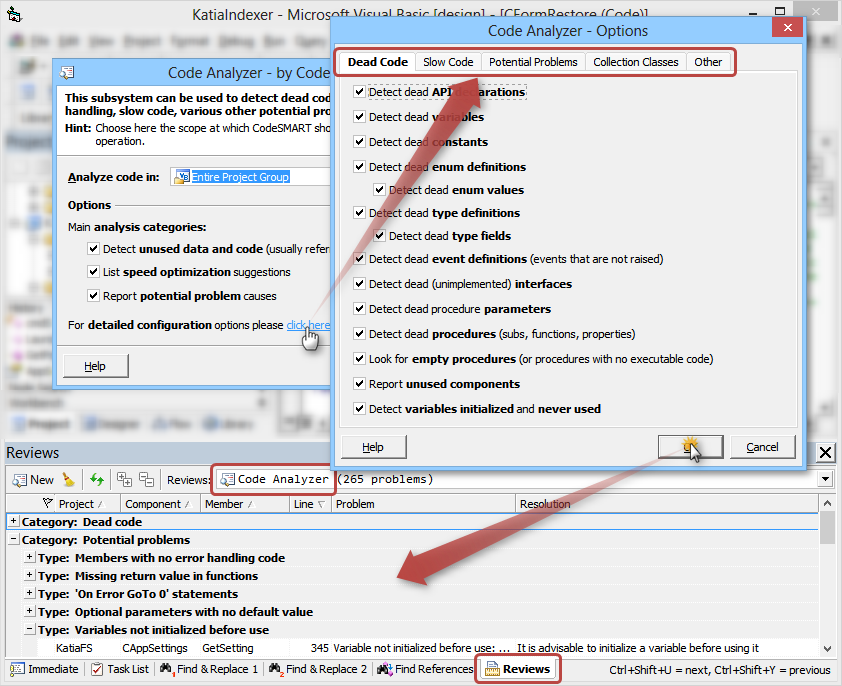
The CodeSMART Code Analyzer is a valuable tool that can be used to examine Visual Basic projects and search for dead or slow code, as well as for potentially
problematic code. It can be seen as a control quality tool for Visual Basic programmers who want to refine the code they write by making it smaller, faster and less
prone to errors. The Code Analyzer covers three major problem categories:
- Dead (unused) code and symbols: code that is no longer used. This code usually has a negative impact on the compiled program size, not to speak about having a significant negative role in code readability.
- Performance issues: certain statements and code that is usually considered a bad choice from an execution speed perspective.
- Potential problems: code that has a known potential for generating errors.
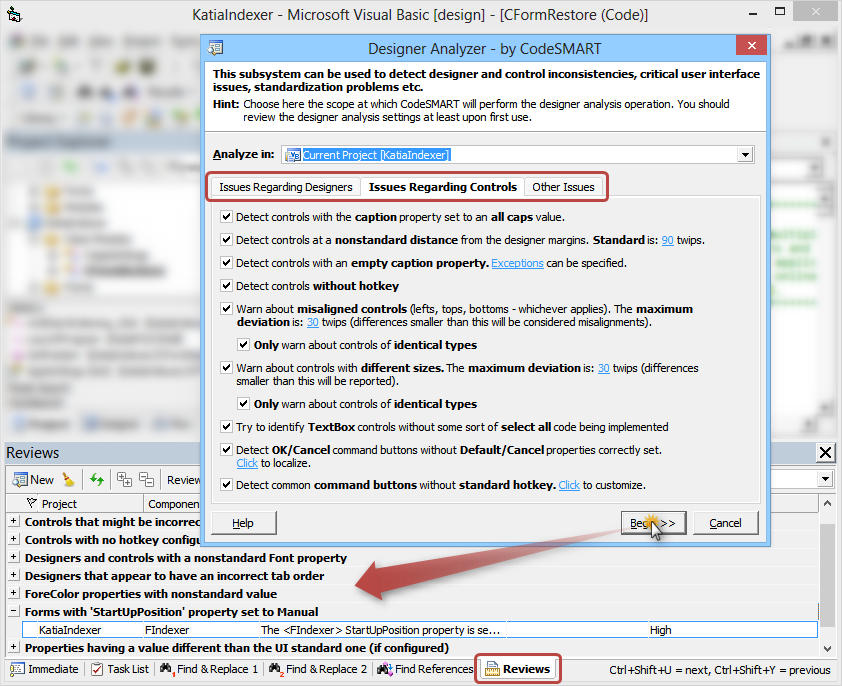
The CodeSMART Designer Analyzer is an extremely valuable tool that can be used to examine Visual Basic components for identifying designers and controls that can lead
to an inconsistent or incorrect user interface. It can be seen as both a user interface quality control tool and a user interface standard enforcement tool with
all the advantages that result from these. The Designer Analyzer covers three major problem areas:
- Designer issues: refers to most common designer-related (form, user control, user document, property page etc) issues.
- Control issues: refers to control-related problems.
- Other (general) issues: refers to problems that could not be included in the above two but still apply to the application user interface.
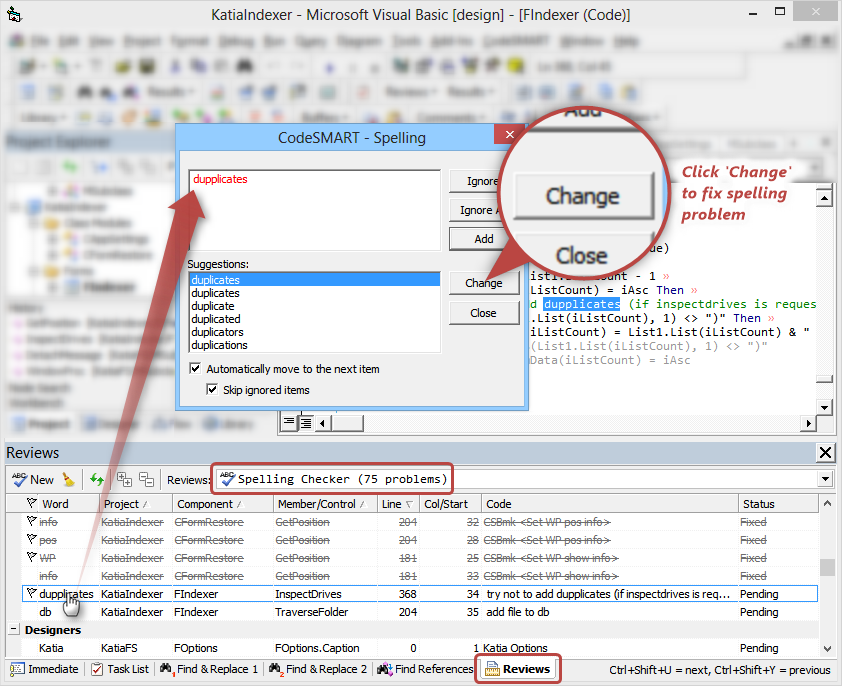
The CodeSMART Spelling Checker is a similarly useful tool. What can be more embarrassing than delivering an application and realizing you have spelling errors in its
user interface? Let's face it, we all felt bad because of this at least
once in our lives. We did it too - so we decided it's the time to have a Spelling Checker component in CodeSMART. Here it is what this tool can analyze for you:
- comments that appear in code
- string constants used in code
- designer control Caption and the Text properties
There are even more analyzer tools shipped with CodeSMART:
- The Strings Reviewer: this tool does somehow share part of its goals with the spelling checker. Its purpose is to help you produce a correct user interface as for the text it displays, but while the spelling checker focuses on individual words correctness, the Strings Review was designed to ease the phase of logical word combination (phrasing) analysis and correction.
- The Code Commenting Conformity Checker: many organizations employ code documentation standards - and it is recommended even for single developers to adhere to such one. Enforcing a code documentation standard can be done by requiring descriptive comments for modules and procedures, and also by requiring code commenting to be done inside routines as well.
6. AUTOMATED TEXT ENTRY
6.1. AutoText
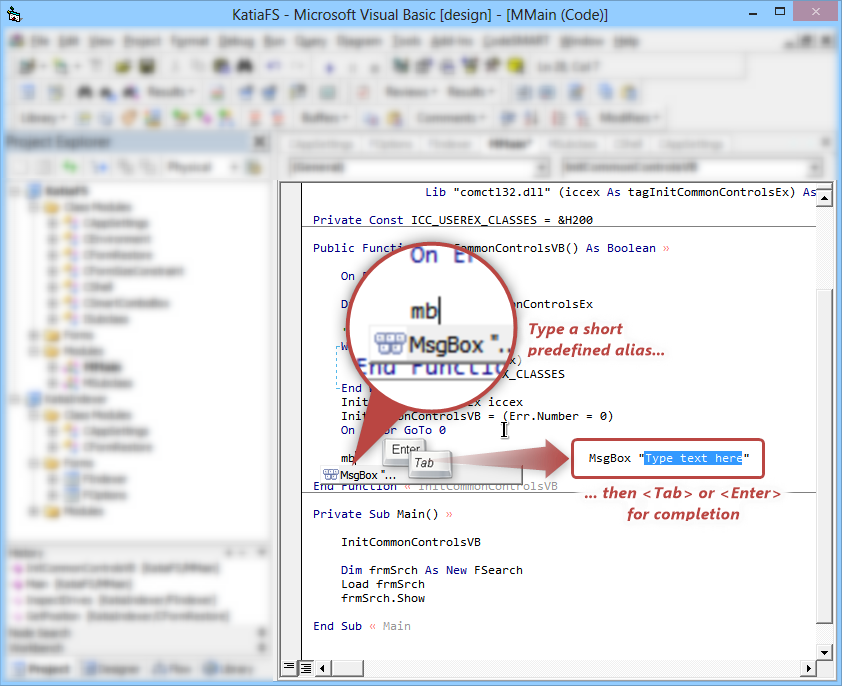
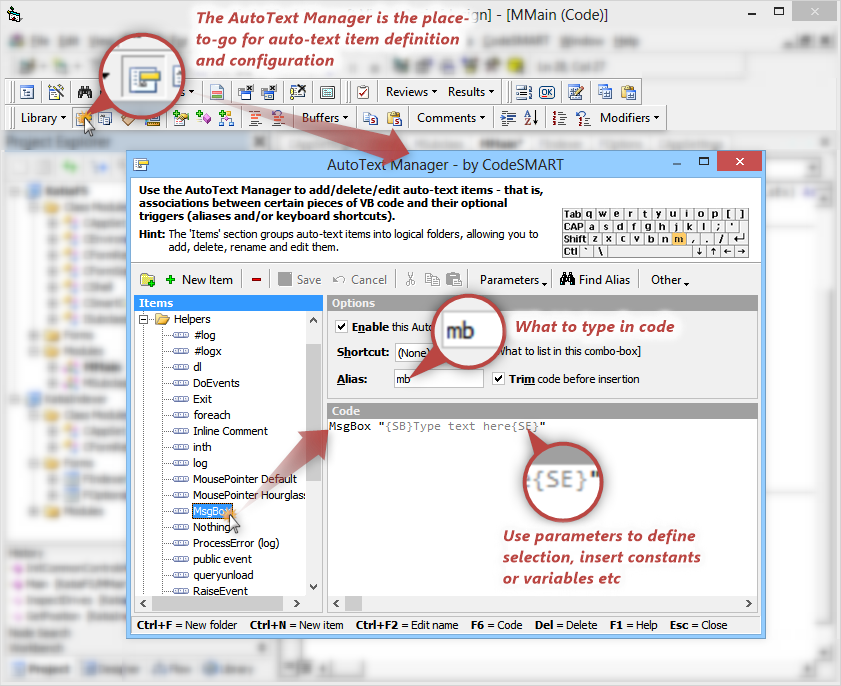
Many times during the process of writing code you have probably used identical or similar code blocks or written the same long instruction sequence over
and over. In such cases, an auto-text feature like the one found in many professional text editors could save you a lot of time and allow you to concentrate on the program
logic - welcome to the CodeSMART AutoText system!
6.2. SmartComplete
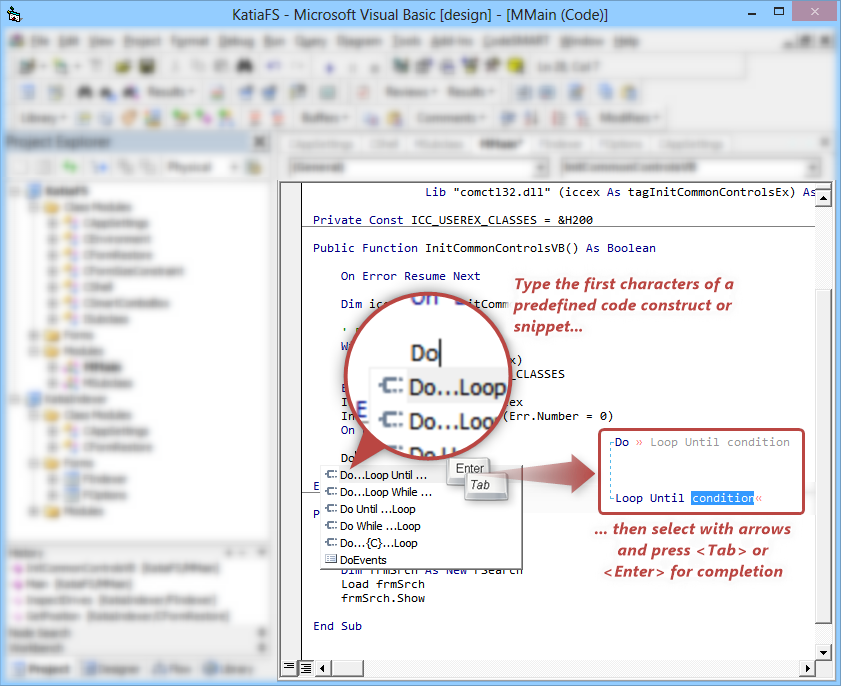
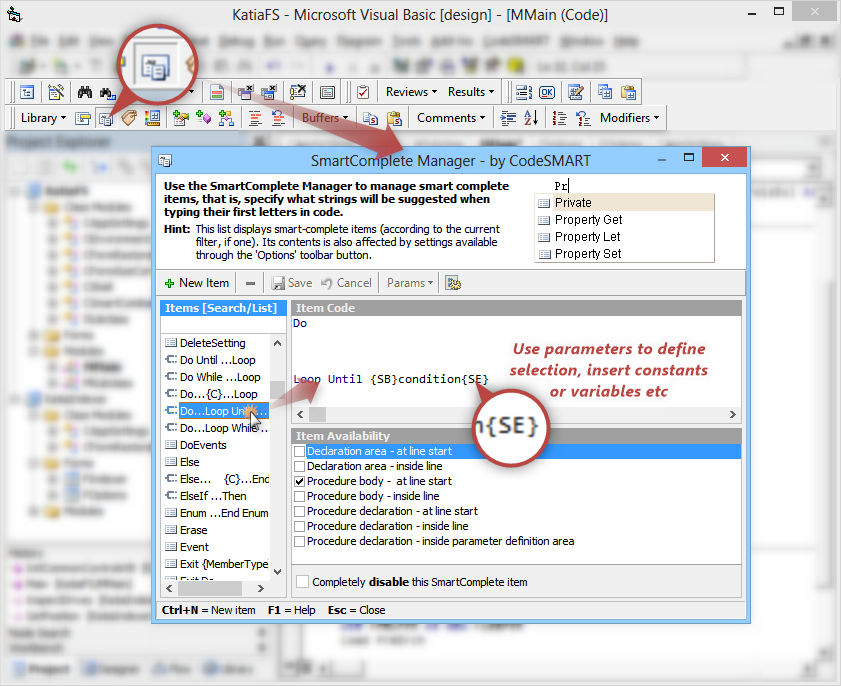
The CodeSMART SmartComplete subsystem displays an Intellisense-like window with Visual Basic keywords, statements and global functions that are missing from the
Visual Basic Intellisense list, plus custom (user-defined) items.
6.3. Other Fast Code Entry Tools
Besides the above, CodeSMART also features the following fast code entry tools:
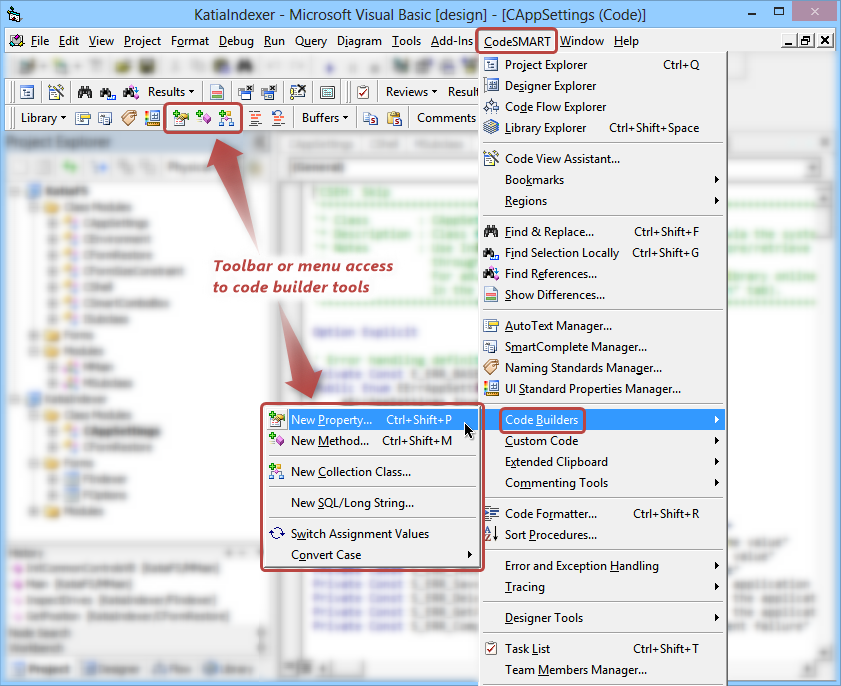
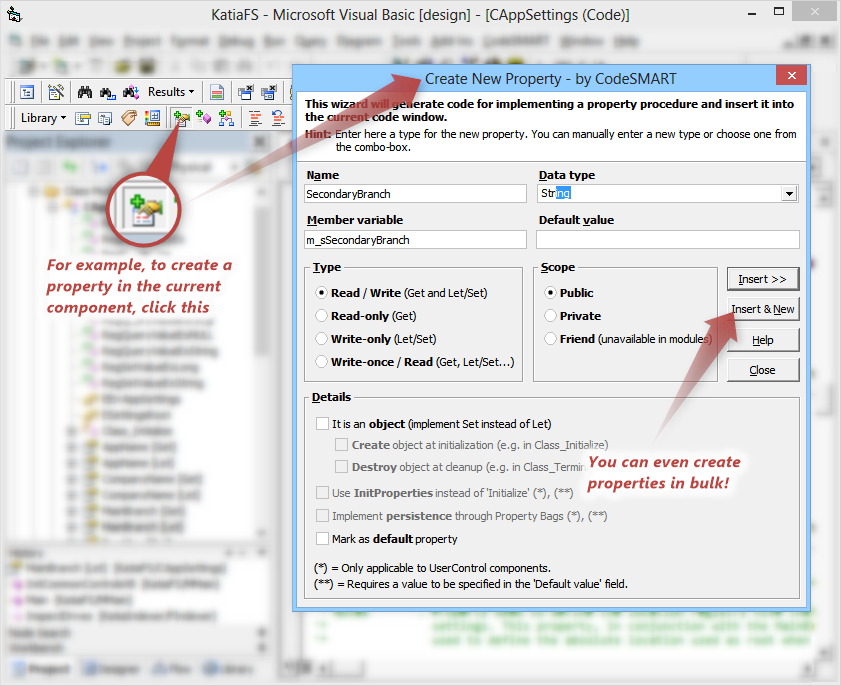
- The CodeSMART Code Builders represent a set of tools that allow you to quickly create property procedures, sub or function procedures and even collections classes. Also, a very useful feature is the one that switches an assignment operator's parts - especially when writing database applications and having to initialize local fields from a lot of database fields at initialization, then reverse the operation at unloading. Moreover, CodeSMART can help to quickly format regular or SQL strings.
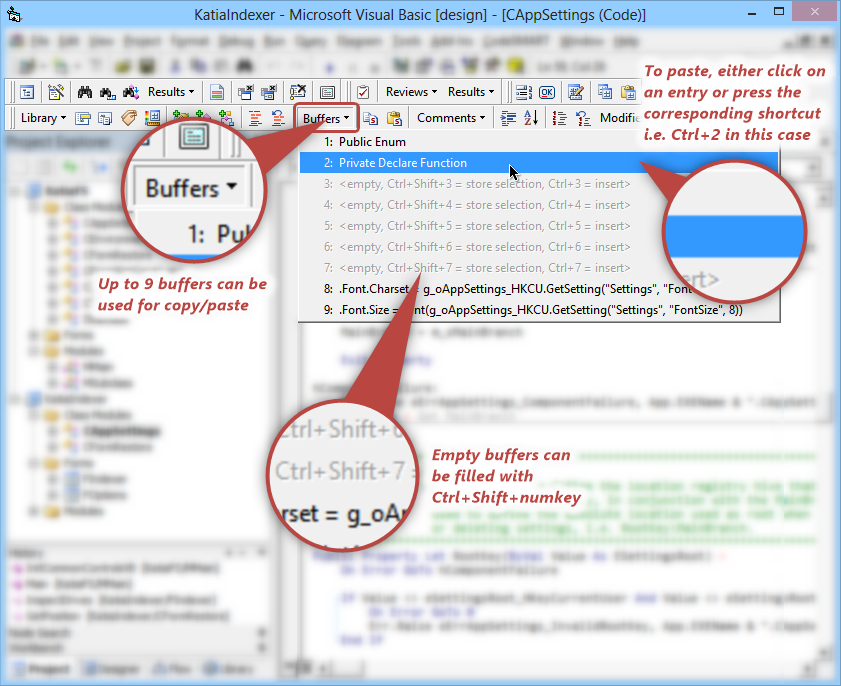
- The CodeSMART Multiple Copy-and-Paste Buffers: CodeSMART extends the standard Clipboard with persistent additional copy-and-paste buffers. These buffers can be filled with any piece of Visual Basic code and their contents can be pasted into any Visual Basic code window by using a simple shortcut key system.
7. DESIGNER TOOLS
While designing and working with user interface items, CodeSMART can help you with some serious designer tools:
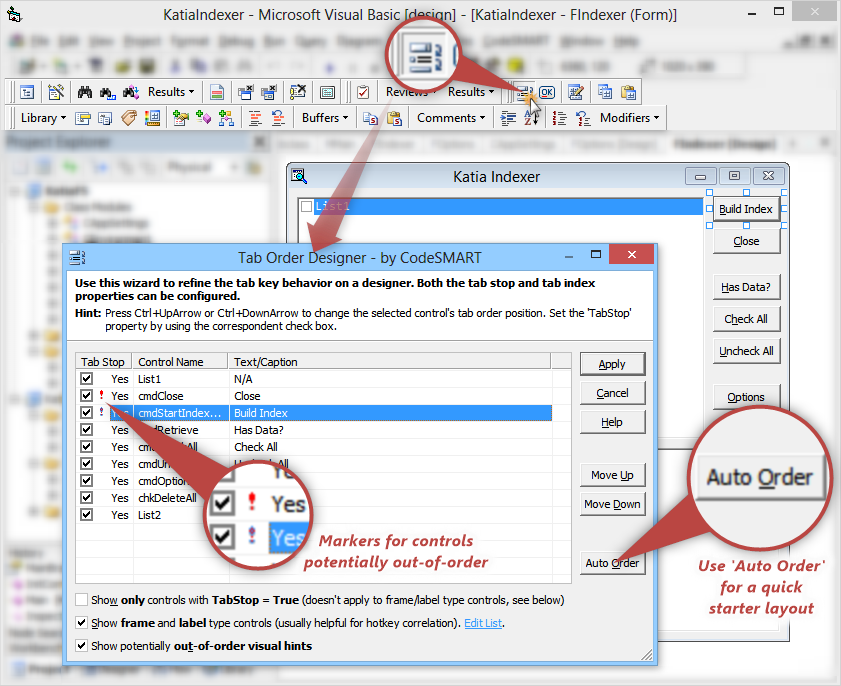
- Tab Order Designer: configuring/reconfiguring tab order on a form or user control by managing each control's TabIndex property value can be a very tedious task. CodeSMART has a Tab Order Designer which can help you automate this process. You can either set the order manually by simply sorting a list, or you can even let the tool automatically establish the tab order (it does this in a standard right-to-left, top-to-bottom sequence).
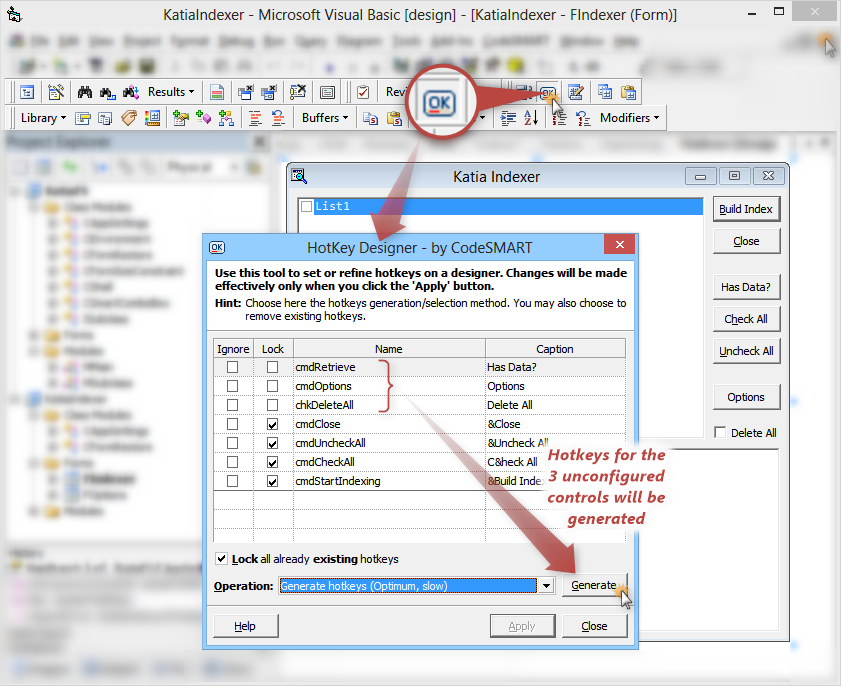
- Hotkey Designer: this tool allows you to automatically manage hotkeys in your application user interface. The tool provides a hotkey generation mechanism along with the possibility to preserve (lock) some already defined hotkeys.
-
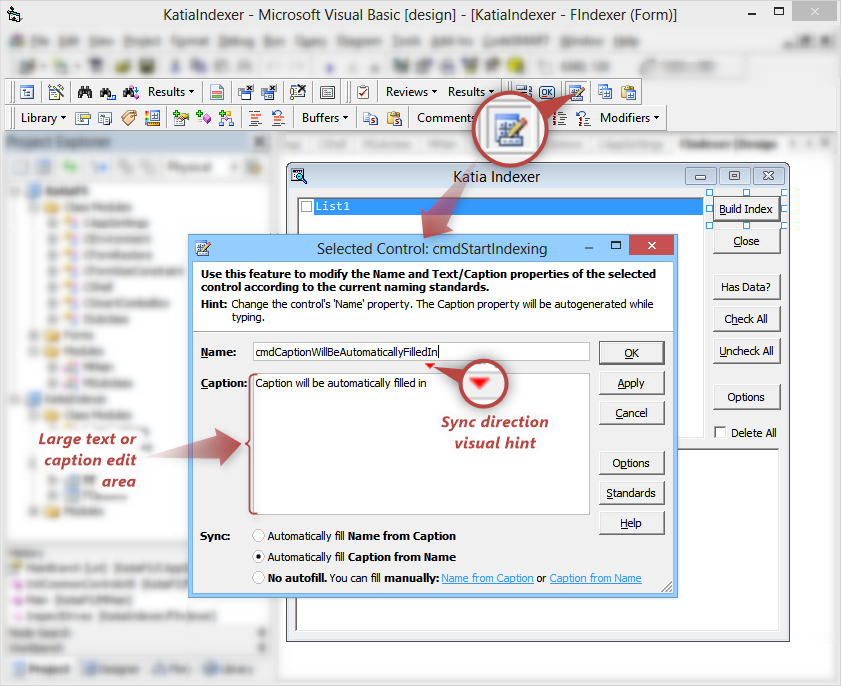
Change Name and Text Properties: When you design a form, besides modifying control positions and sizes, the most often updated properties are Name and (whichever applies, if one) Text or Caption.
Plus you may want at some time to rename a certain control based on its Caption/Text property, for example rename a label with the caption "Surname" to "lblSurname" - or vice versa
(that is, perform a property-to-property value generation).
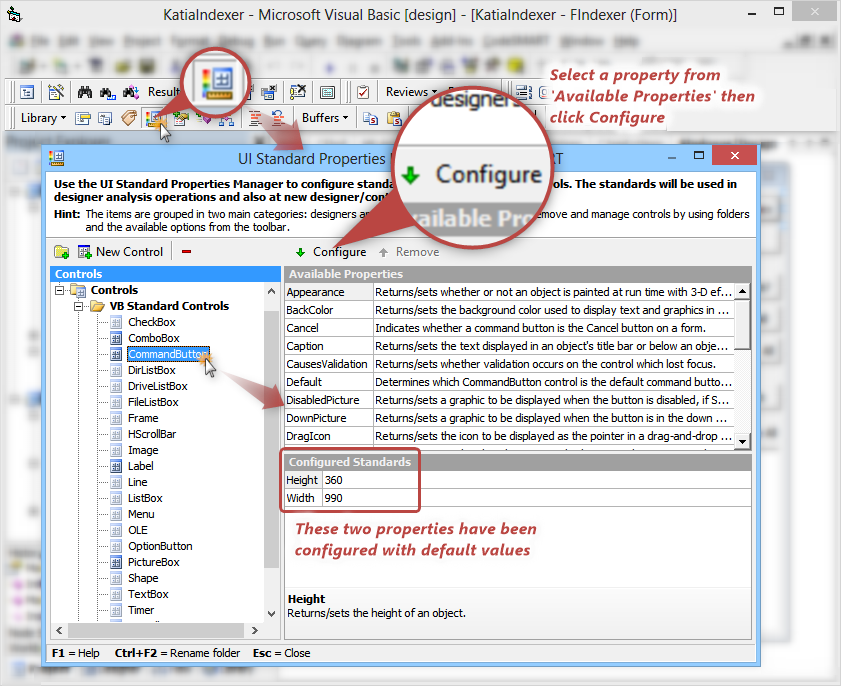
The CodeSMART Change Name and Text Properties tool can ease manual property setting and automate property-to-property value generation. - New Control Properties: In the process of creating new UI items, a developer usually ends up setting a subset of properties for certain controls over and over. CodeSMART can do for you this tedious task at control creation time or whenever a new designer component is added, by applying default values to their properties in conjunction with UI Standard Properties Manager settings.
8. CODE MAINTENANCE TOOLS
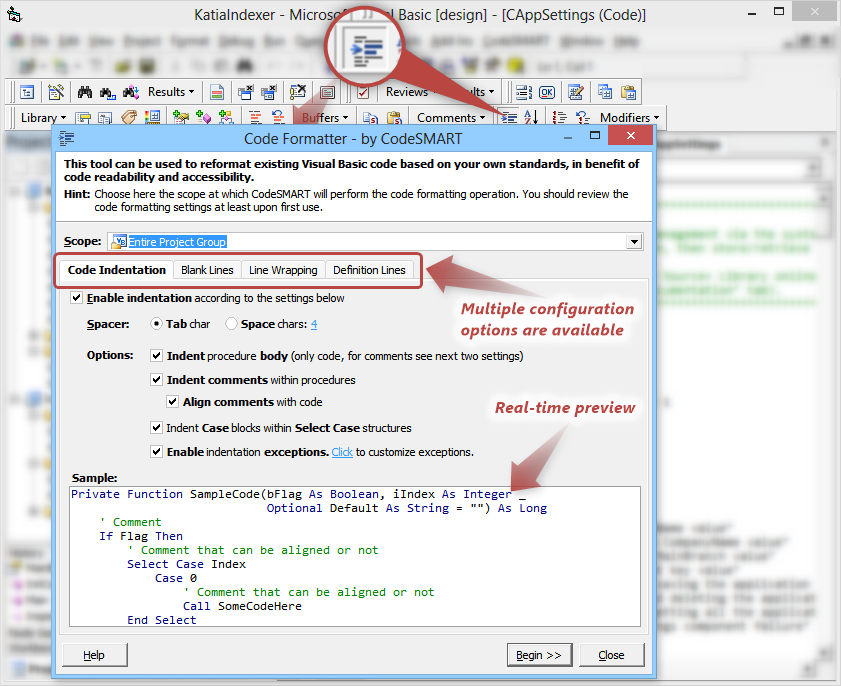
The CodeSMART Code Formatter can be used to reshape Visual Basic code based on your standards (either specific to a single programmer or used for an entire programming
team). By using the CodeSMART Code Formatter you can:
- Reshape (indent) your code.
- Manage the amount of blank lines used to emphasize certain code elements. You can instruct CodeSMART to insert a specified amount of blank lines before and/or after specific Visual Basic keywords and also to limit the amount of total consecutive blank lines.
- Split code lines that exceed a certain length and also perform the reverse operation. Also, already split code lines can be compacted.
- Wrap method definition lines, API declarations and 'As' variable declarations across multiple lines in benefit of code readability.
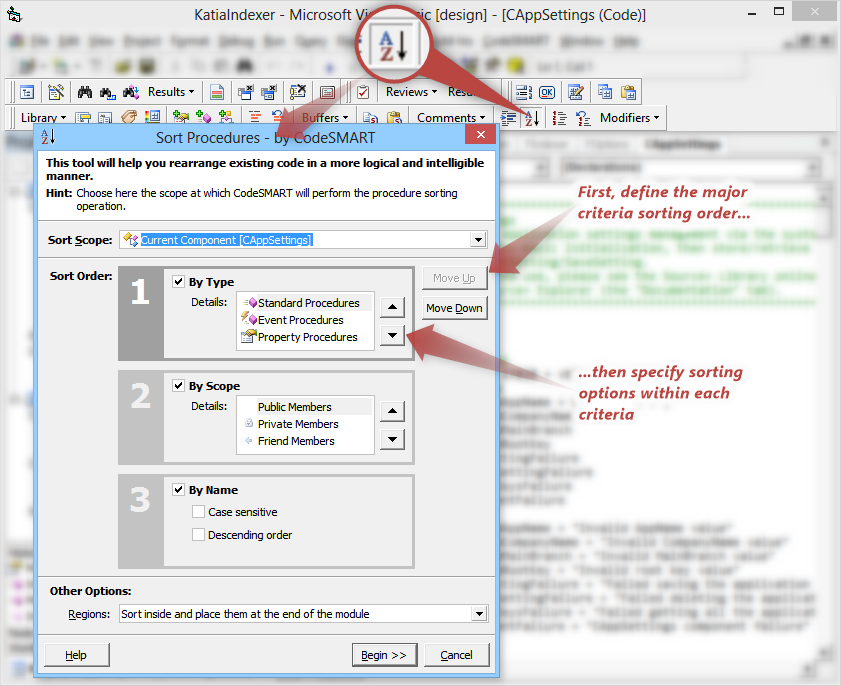
The CodeSMART Sort Procedures tool can help you rearrange code in a more logical and intelligible manner. CodeSMART offers you the possibility to arrange code elements based on their scope,
type and signature.
9. CODE DOCUMENTING TOOLS
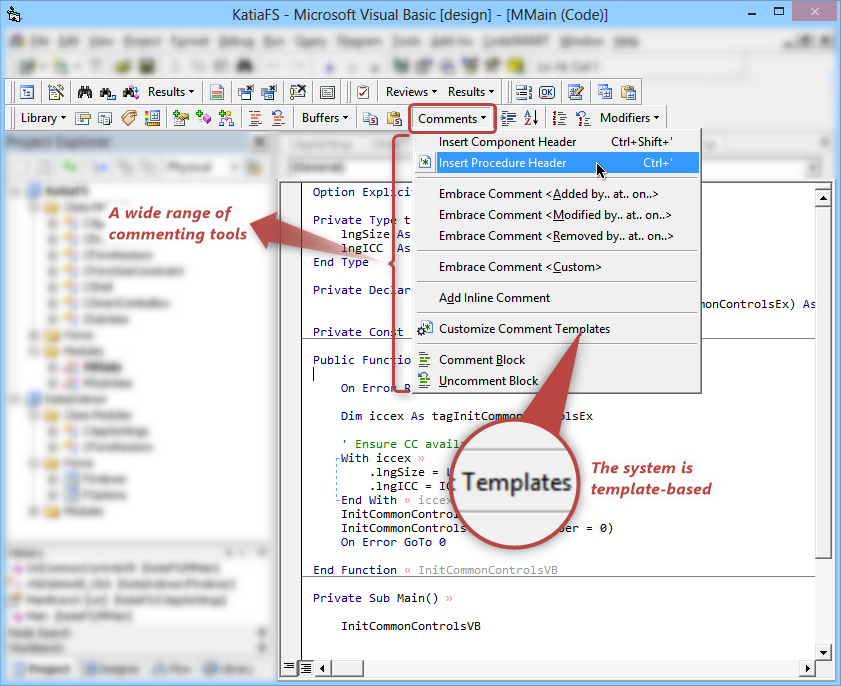
The CodeSMART documenting tools ease adding different types of comments and headers to Visual Basic code files
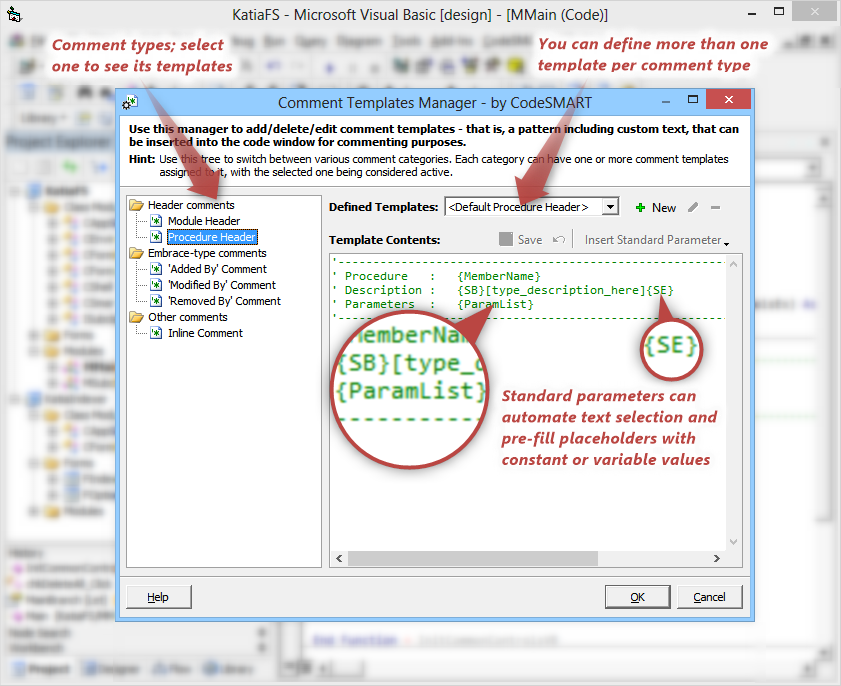
and (in certain cases) their automatic removal. Comments are based on templates and you can use the Comment Templates
Manager in order to customize them.
Types of comments used by the commenting tools:
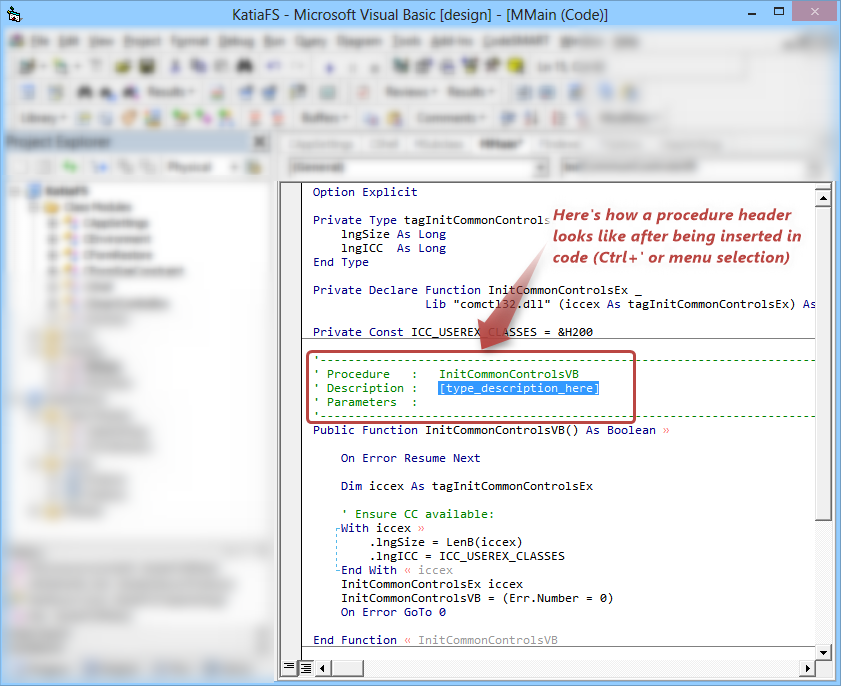
- Header comments: descriptive header comments added to components and procedures. Can be added to the current component/procedure only or in bulk.
- Embrace-type comments (block comments) used to enclose a block of code between descriptive notes.
- Inline comments: other comments (usually single-line, but not necessarily so)
10. ERROR HANDLING TOOLS
When it comes down to protecting your code and pinpointing problem causes, CodeSMART can help with some very powerful subsystems:
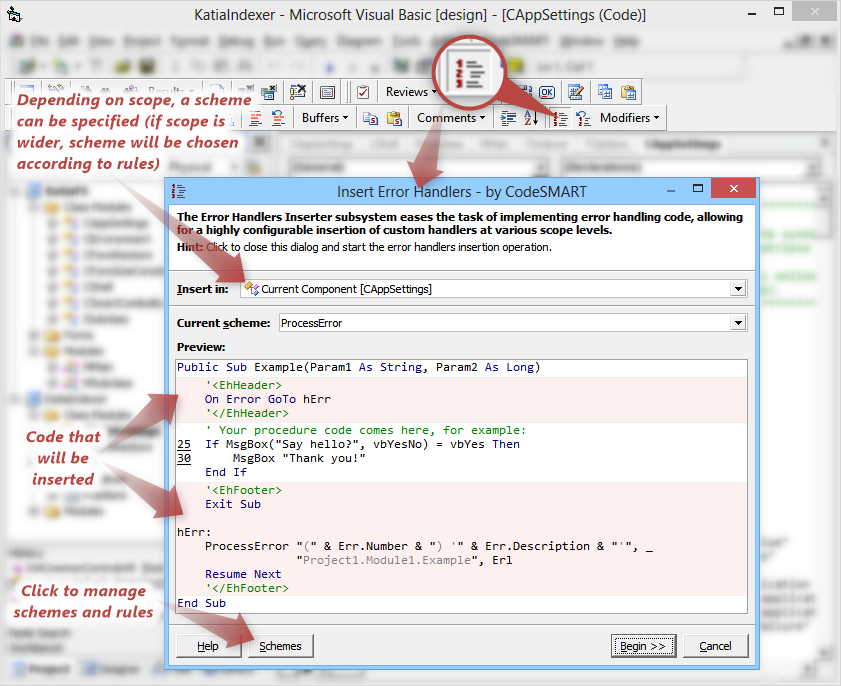
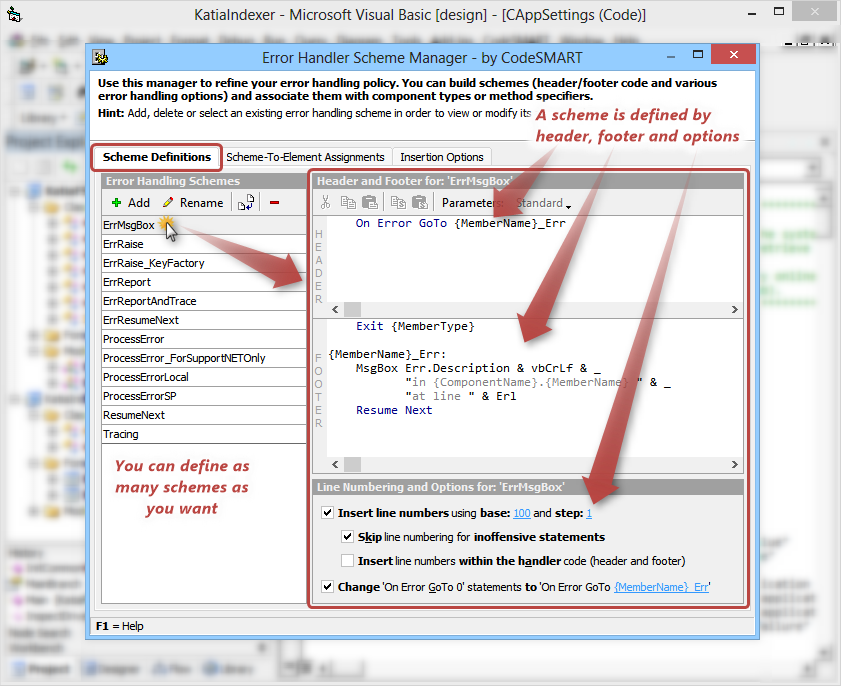
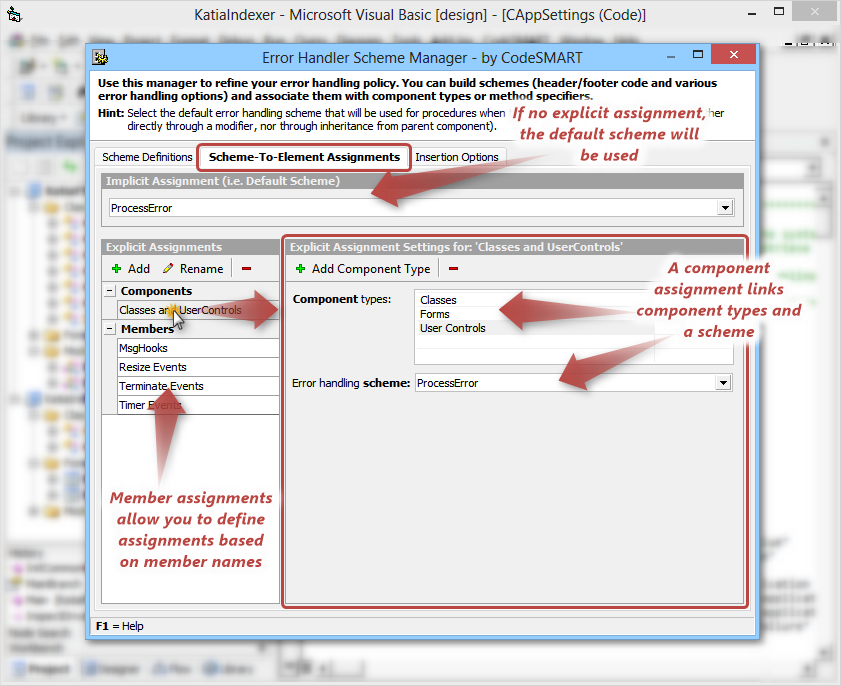
- The CodeSMART Error Handling Engine: Welcome to the most powerful VB6 error handling system ever! It is based on the concept of error handling scheme i.e. an error handling template designed for a specific component or procedure. This template completely describes the error handling configuration: header, footer, line numbers and other options that configure the automatic insertion/removal process. Schemes can be assigned to different types of Visual Basic components (Classes, Forms, Modules etc.) or to procedures (members) that match a certain pattern.
- The CodeSMART Tracing Subsystem: CodeSMART can help you automatically add or remove tracing instructions which can be extremely valuable in debugging tasks. This is achieved by adding a dedicated module to your project (source code included) and a reference to a special tool (AxVisualLogger) where the information can be logged (of course, you can use your custom logger if you want!).
- Finally, a small but handy feature for Handling Exceptions: Because Visual Basic doesn't offer built-in support for handling exceptions, you can use the MExceptionHandler module (provided by CodeSMART with full source code) which implements code for filtering any unhandled exceptions that may occur during a program's execution. This way your program can communicate unexpected events to a higher execution context that is eventually able to recover. Also, handling exceptions ensure that a termination code containing clean-up tasks is executed even if an exception or some other error occurs.
11. TASK MANAGEMENT
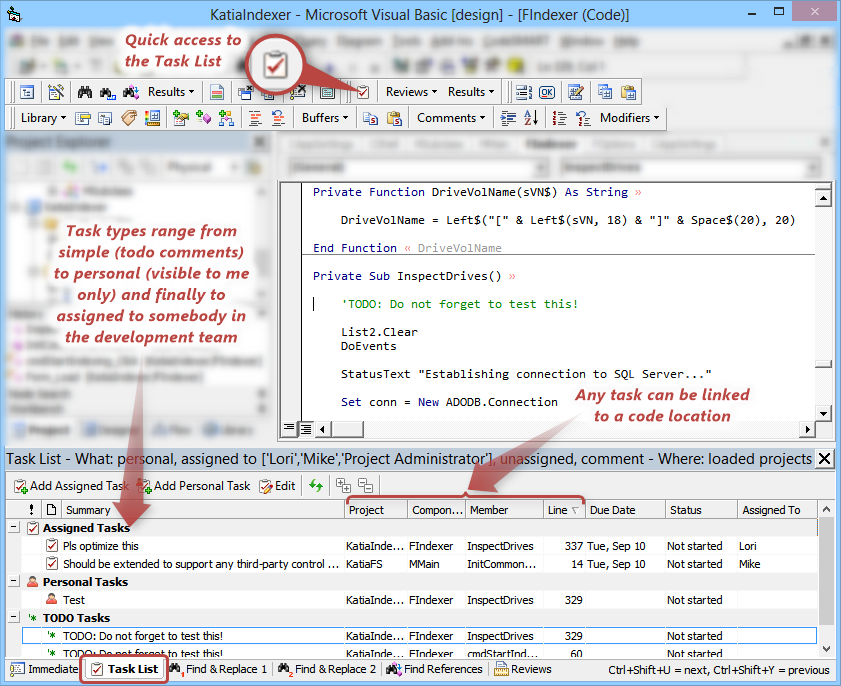
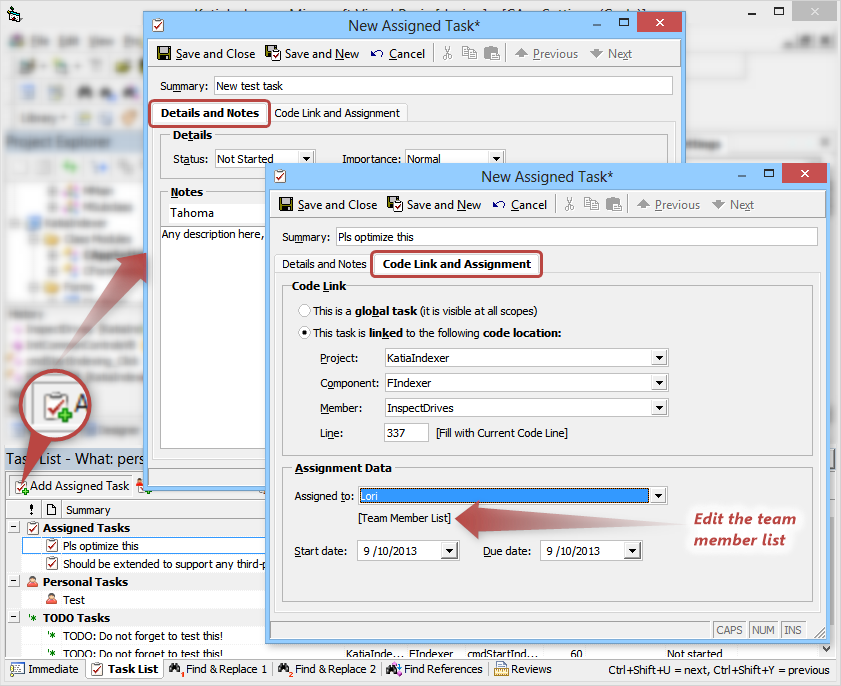
The CodeSMART Task List can help you in planning projects, tracking development progress and thus following deadlines and
delivery terms. There are three task types managed by CodeSMART:
- Assigned tasks: tasks that are assigned to different members of a team, with start and due dates, code links, developer assignments.
- Personal tasks: similar to the assigned tasks, with the only difference that they are visible only to their creator and have no developer assignments.
- Comment (TODO) tasks: can be used as bookmarks in code, or as reminders etc.
12. MORE...
And of course, somewhere in between the above major systems we have managed to insert many small features that you will probably discover every day. A non-comprehensive list includes:
Go Top
- AutoSave and AutoBackup: pretty obvious what it does, and it works at specific time intervals.
- Mouse wheel support: you probably know that mouse wheel scrolling is generally not supported by the VB6 editor. Well, not anymore since CodeSMART adds that for you!
- Auto-checkout when trying to edit a file that is under source code control.
- Eventually enforce SCC action documenting.
- One-button close all windows (code or designer).
- Switch assignment values.
- Convert case (upper, lower, proper).
- Code Statistics: This feature can provide statistical information at a custom scope (component, project, project group).
- Custom Code Inserter: There are times during the coding process when you need to insert similar pieces of code in every procedure, function or property of a code module.
- Show File Differences: identify all the changes that were made to a file before saving it.